How to make a one-pager from a Canva template
To make a one-pager in Canva, search "one page" in Canva's templates, filter to free layouts, and pick the one closest to your job: a sales sheet, a company overview, an investor teaser, or a project brief. Replace the text block by block, apply your brand colors and logo, and download it as a PDF.
I have made plenty of one-pagers in Canva, usually the night before a meeting. The templates are good starting points, so this is a practical guide rather than a takedown: which template to pick, how to fill it quickly, what the exports can and cannot do, and the one situation where I stop using Canva for this.
#Are Canva one-pager templates free?
Yes, many are. Canva's one-page template gallery mixes free layouts with ones marked Pro, which need a paid plan. You can filter to the free set, and for a standard sales sheet or company overview it is usually enough. Pro layouts mostly add premium photos and graphics, not a better structure.
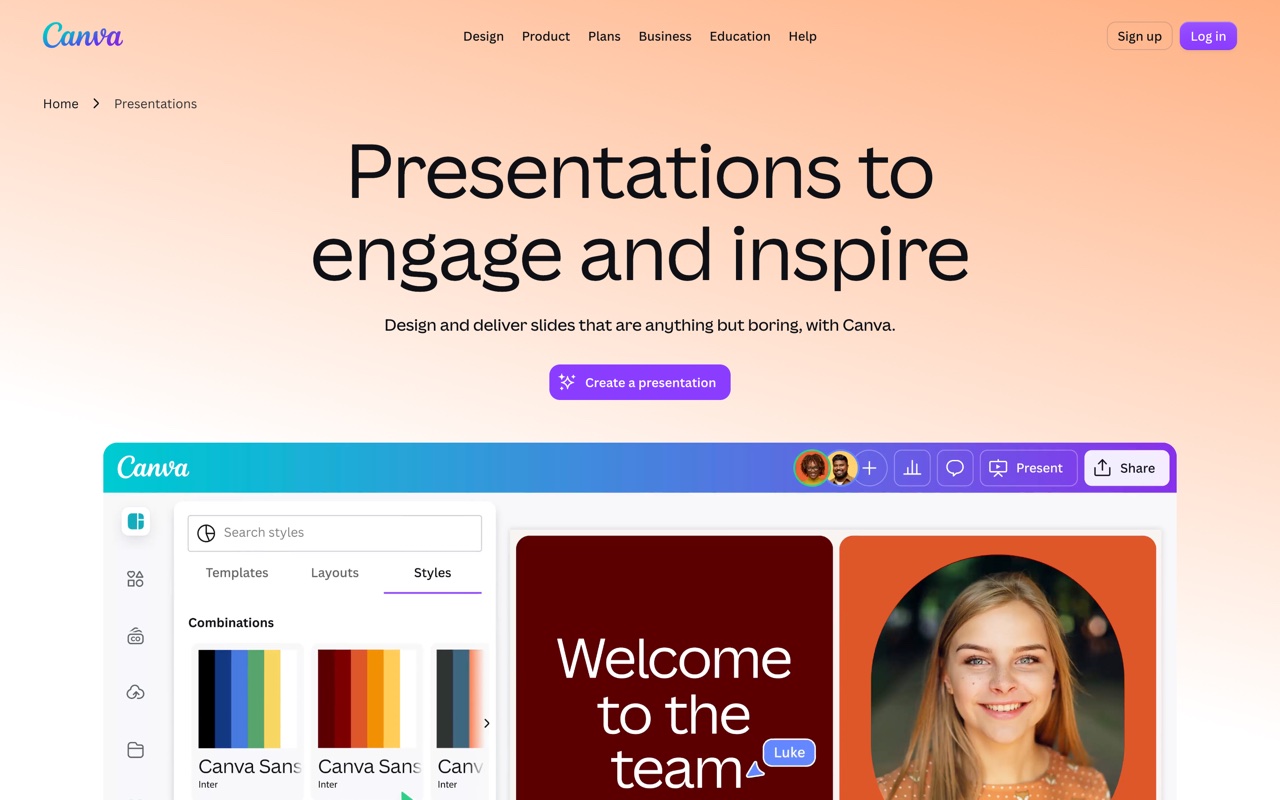
Canva's template gallery: search "one page" or "one pager" and filter by free.
Canva also publishes one-pager layouts as Canva Docs, its document format. Docs templates suit text-heavy pages like project briefs; the regular design templates suit visual pages like sell sheets.
#Which Canva one-pager template should you pick?
Pick by the decision you want from the reader, not by the prettiest thumbnail. The search results also mix business one-pagers with the classroom kind students make about a book, so skip anything with doodles and quote bubbles if you are pitching.
| Your job | Look for | Block order to fill |
|---|---|---|
| Sell one product | "Sales one pager", "sell sheet" | Outcome headline, problem, 3 benefits, proof, one call to action |
| Introduce the company | "Company profile", "fact sheet" | Two-sentence description, fact strip, traction, leadership, contact |
| Pitch investors | "Startup one pager", "business one pager" | One-line pitch, problem, solution, market, traction, team, the ask |
| Brief a team | "Project brief", Canva Docs layouts | Goal, scope, non-goals, success metric, owner, deadline |
| Introduce yourself | "One page resume", "personal profile" | Positioning line, three results, how you work, contact |
For finished copy to paste into whichever layout you choose, the one-pager examples post fills in each of these with a headline and every block. If you want to compare Canva's gallery with free templates from HubSpot, Adobe Express, and Visme, see free one-pager templates.
#How do you make a one-pager in Canva, step by step?
- Open the gallery. Go to Templates, search "one page", and filter to free if you do not have Pro.
- Write the headline first. It is the only line everyone reads. Replace the template's headline before touching anything else.
- Fill top to bottom, and delete blocks you cannot fill honestly. A template with seven sections does not need seven sections. Three strong blocks beat seven thin ones.
- Apply your brand. Swap the template's colors for yours, set your fonts, and drop in the logo. Canva's Brand Kit speeds this up if you make these often; the free plan gets one basic kit, and custom font uploads need Pro.
- Download. Choose PDF Standard for email, PDF Print for printing, or PNG for a quick image.
Before you download, zoom out until the page is thumbnail-sized. If you cannot tell what the headline says or where the call to action is, the hierarchy needs work. One-pager design covers how to fix that.
#Can you export a Canva one-pager to PowerPoint or Word?
PDF and PNG are the dependable exports. Canva can also download designs as a PowerPoint file (.pptx), which is useful if a colleague needs to edit the page in PowerPoint, but some elements and fonts may shift, and the file carries Canva's layout rather than your company's slide master. There is no Word export, Canva Docs included, so if someone needs a Word version you are converting the PDF or rebuilding the page in Word.
#What slows you down with a Canva template?
Filling it. The template solves the layout, but you still type every headline, paste every number, recolor elements to your brand, and resize the logo until it sits right. Once, that is a pleasant half-hour. For the fifth sales sheet this quarter, or when one number changes and you rebuild the page, it adds up. And a popular free template is one your reader may have seen before.
#Canva template or an agent that builds the page?
The difference is who fills the page. A Canva template gives you a designed layout and leaves the content to you. An agent working with heydecks, the AI slide creator for AI agents, takes your notes and returns the finished one-pager already on your brand.
| Canva one-pager template | An agent with heydecks | |
|---|---|---|
| Starting point | A designed layout you fill | A finished page built from your notes |
| Who places the content | You, block by block | Claude, ChatGPT, or another agent writes it; heydecks lays it out |
| Brand | You apply colors, fonts, and logo | Applied automatically by the Brand Kernel |
| What you get | A PDF, PNG, or PPTX download | A live link and a PDF, plus an editable PPTX on paid plans |
| Best when | You want hands-on control of the canvas | You make one-pagers often, or an AI workflow needs to produce them |
Canva is the better pick when you want to place every element yourself or make a one-off you will fuss over. The agent route wins when you make these regularly. For a wider comparison, see the Canva alternative page.
#How does heydecks build a one-pager from your notes?
I connect the heydecks MCP server to Claude, paste my notes, and ask for a one-pager. Claude writes the copy and chooses the layout, and heydecks renders it from hand-designed one-pager templates on my colors, fonts, and logo, which the Brand Kernel extracted from my website once. Developers can call the deck API instead. The result is a live link and a PDF, plus an editable PowerPoint on the Solo plan and up. The free plan's 200 one-time credits cover two one-pagers.
Here is the company one-pager template built this way, on a sample brand:

The one-pager generator page has the exact brief I use, if you want to run your next page through it.
#Frequently asked questions
#Does Canva have one-pager templates?
Yes. Search "one page" or "one pager" in Canva's templates to find sales sheets, company profiles, business one-pagers, and one-page resumes. Many are free; some are marked Pro and need a paid plan.
#How do I make a one-pager in Canva?
Open a one-page template, write the headline first, then replace each block top to bottom and delete any you cannot fill. Apply your brand colors, fonts, and logo, and download it as a PDF.
#Can I download a Canva one-pager as a PDF or PowerPoint?
Yes. PDF (standard or print) and PNG are the most reliable. Canva can also download a design as a PPTX file, though some elements may shift and you may need to tidy it in PowerPoint.
#Is there a free Canva one-pager template for business?
Yes. Filter the one-page gallery to free and look for sales sheet, company profile, or business one-pager layouts. The free set covers most business needs; Pro mainly adds premium images and graphics.
Keep reading